
Well, I've got the thing for you! MAFIA VOTE COUNTER!
Spoiler
- Click image to enlarge.
Download from MediaFire
Download Mafia Vote Counter: http://www.mediafire.com/file/gjwnt5ubp ... 0v1p01.exe
Download the Help File (also shown below): http://www.mediafire.com/?y1et3fzhd5b65hr
Spoiler
These links don't work; it seems ripway.com has been ripped out 
Download Mafia Vote Counter: http://h1.ripway.com/shieldgenerator7/M ... 0v1p01.exe
Download the Help File (also shown below): http://h1.ripway.com/shieldgenerator7/m ... -v1p00.txt
Download Mafia Vote Counter: http://h1.ripway.com/shieldgenerator7/M ... 0v1p01.exe
Download the Help File (also shown below): http://h1.ripway.com/shieldgenerator7/m ... -v1p00.txt
How to Use Mafia Vote Counter
Spoiler
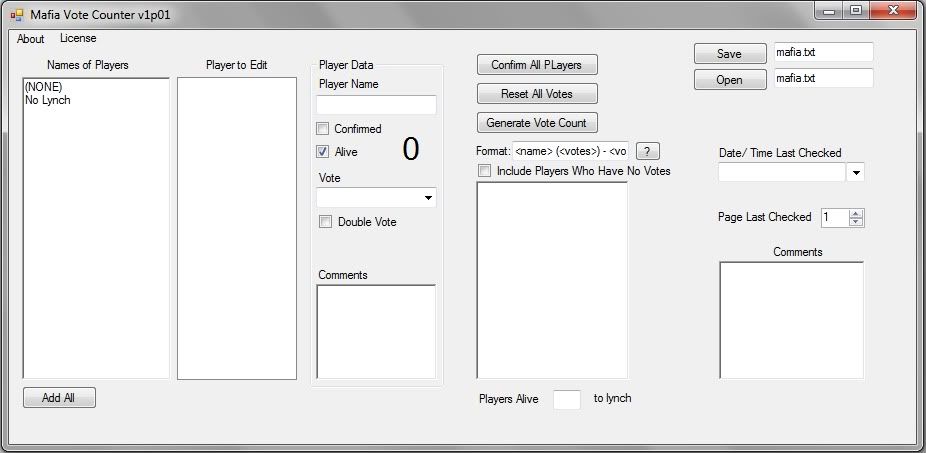
Step 1: Type the list of players into the textbox labeled "Names of Players" (or copy and paste the list), making sure each player is on its own line.
Step 2: Click "Add All" below the textbox and all the players will be added to the list to the right of the textbox.
Step 3: Edit the players' stats.
The "Player Name" field lets you change the player's name, in case you spelled it wrong or you want to replace him with another player (the old name gets deleted).
Check "Confirmed" when the player confirms, or optionally click "Confirm All Players" to check this box for all players at once.
Uncheck "Alive" when the player dies or is mod killed. This will keep the player and his votes from showing up in the vote count.
Select the other player that the current player is voting for in the "Vote" dropdown box.
Check "Double Vote" to allow the player an extra vote. The extra vote will show up as "???" in the vote count.
The "Comments" textbox allows you to enter any random thing you want to write about the player.
To the right of the "Alive" checkbox there is a number written in big letters. This is the current amount of other players who are voting for him.
Step 4: Keeping track of the game.
On the far right, in the "Date/ Time Last Checked" textbox, type the date and time you last checked this game, or optionally select the date from the Date-Time Picker to the right and it will automate it for you.
In the "Page Last Checked" textbox, type / select the page number of which you last checked.
The "Comments" textbox allows you type any random comment about the game you want.
Step 5: Generate the Vote Count
Click the "Generate Vote Count" button to the right of the "Player Data" control box.
The textbox immediately below it will then contain the current vote count with the current settings, along with the amount of players alive and the amount of votes needed for a lynch.
If you want to change the amount of votes needed for a lynch, change the value of the textbox directly below the vote count textbox.
Optionally, you can display the vote count for players who have recieved no votes. To do so, check the "Include Players Who Have No Votes" checkbox.
Step 6: Saving.
In the top right corner, you will find the "Save" button. Type the name of the file in the textbox to the right of the file, making sure to include the file extension. By default, "mafia.txt" is typed in. Then click the "Save" button. The file will be saved in the same directory as the program. Any other files by the same name will be overwritten.
Step 7: Opening
Right under "Save" is the "Open" button. Type the file name, with file extension, in the textbox at the right ("mafia.txt" by default) and then click "Open". All game data will be entered into the data fields. Note: The file to open must be in the same directory as the program.
Step 2: Click "Add All" below the textbox and all the players will be added to the list to the right of the textbox.
Step 3: Edit the players' stats.
The "Player Name" field lets you change the player's name, in case you spelled it wrong or you want to replace him with another player (the old name gets deleted).
Check "Confirmed" when the player confirms, or optionally click "Confirm All Players" to check this box for all players at once.
Uncheck "Alive" when the player dies or is mod killed. This will keep the player and his votes from showing up in the vote count.
Select the other player that the current player is voting for in the "Vote" dropdown box.
Check "Double Vote" to allow the player an extra vote. The extra vote will show up as "???" in the vote count.
The "Comments" textbox allows you to enter any random thing you want to write about the player.
To the right of the "Alive" checkbox there is a number written in big letters. This is the current amount of other players who are voting for him.
Step 4: Keeping track of the game.
On the far right, in the "Date/ Time Last Checked" textbox, type the date and time you last checked this game, or optionally select the date from the Date-Time Picker to the right and it will automate it for you.
In the "Page Last Checked" textbox, type / select the page number of which you last checked.
The "Comments" textbox allows you type any random comment about the game you want.
Step 5: Generate the Vote Count
Click the "Generate Vote Count" button to the right of the "Player Data" control box.
The textbox immediately below it will then contain the current vote count with the current settings, along with the amount of players alive and the amount of votes needed for a lynch.
If you want to change the amount of votes needed for a lynch, change the value of the textbox directly below the vote count textbox.
Optionally, you can display the vote count for players who have recieved no votes. To do so, check the "Include Players Who Have No Votes" checkbox.
Step 6: Saving.
In the top right corner, you will find the "Save" button. Type the name of the file in the textbox to the right of the file, making sure to include the file extension. By default, "mafia.txt" is typed in. Then click the "Save" button. The file will be saved in the same directory as the program. Any other files by the same name will be overwritten.
Step 7: Opening
Right under "Save" is the "Open" button. Type the file name, with file extension, in the textbox at the right ("mafia.txt" by default) and then click "Open". All game data will be entered into the data fields. Note: The file to open must be in the same directory as the program.
Spoiler
- Format Editor DONE!
"Set All Votes to None" button DONE!
Spoiler
"It doesn't work on my computer" - There are many reasons why this may be, but one likely reason is that you don't have Microsoft .NET 2008. You can download .NET 2010 here: http://www.microsoft.com/downloads/en/d ... laylang=en. I'm almost sure it's backwards compatible.
"(NONE) and No Lynch show up in the vote count" - Set both of them to not alive (by unchecking "Alive") and they won't show up in the vote count anymore.
"(NONE) and No Lynch show up in the vote count" - Set both of them to not alive (by unchecking "Alive") and they won't show up in the vote count anymore.
-SG7 (
 )
)